
Dialova team ·
Connecting to Dialova with mIRC
Find Dialova chat in mIRC: create your dedicated key, configure your connection, and join channels with this illustrated guide.

Do you like to keep your channel open in a dedicated application, use your shortcuts, and choose your way of chatting? Dialova is also accessible from an IRC client. You join the same chat, with your usual nickname, without needing to leave the site open in your browser.
Connecting with mIRC: From Creating Your IRC Key to Your First Message
Before You Begin: Create Your IRC Key
You'll need an activated Dialova account. If you already have an account, log in before creating an IRC key.
Signed Up with Google or Another Quick Connection?
You may not have a Dialova password. Before creating your IRC key:
- Open Settings → My Account → Create a Password.
- Click Receive link by email. A verified email address must be associated with your account.
- Open the email link, then choose and confirm your Dialova password. If you don't find the email, check your spam folder; if you've requested a link recently, use the one you received.
- Return to Settings → Chat to create your key by following the steps below.
Your connection with Google or your other provider remains available. Never enter the password of that provider on Dialova or in mIRC. The Dialova password is used to confirm key creation; it's then the IRC key that will be used in mIRC.
To find this process again, also see the Dialova Password FAQ.
Next, Create Your IRC Key
- Log in to Dialova and open Settings → Chat.
- Locate the Connecting from an IRC client section.
- Enter your current password in Confirm your current password.
- Click Create my IRC key. If a key already exists, the button becomes Generate a new key.
- Keep the new key: it won't be displayed again after leaving or hiding the page.
This key is the password to use in your IRC client. It's not the website login password. Don't share it and don't send it in a channel or private message.
A new key replaces the previous one and closes old IRC connections to the account. Changing your Dialova password also invalidates your IRC key: you will then need to create a new one and update your client.
Dialova Connection Settings
Regardless of your software, the information is the same:
- Server:
irc.dialova.com - Port:
6697 - Secure connection: TLS, sometimes called SSL in menus
- Authentication: SASL PLAIN
- SASL username and account name: your Dialova nickname
- SASL password: your dedicated IRC key
- Welcome channel:
#dialova
PLAIN refers here to the authentication method: the connection must remain encrypted with TLS. Don't use an insecure connection and don't disable certificate verification.
Connecting with mIRC
mIRC is an IRC client for Windows. Download a recent version from the official mIRC website. The software offers a 30-day trial period, after which a license is required; this applies to the software, regardless of your Dialova account.
Add Dialova to your servers
- Open Tools → Options or press Alt + O.
- In Connect, enter your Dialova nickname in the Nickname field. You can leave the optional name and email fields blank.
- Next to the Server list, open the small menu, then click Add…. Depending on the version, the list may be found in Connect → Servers.
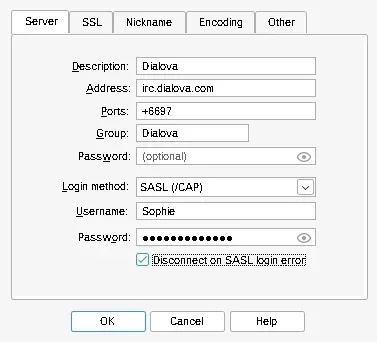
- Fill in the following fields:
- Description:
Dialova - Address:
irc.dialova.com - Ports:
+6697— the + sign enables TLS connection in mIRC. - Group:
Dialova - Password, the first field under Group: leave it blank.
- Login method: SASL (/CAP), without choosing the External, ECDSA, or SCRAM variants.
- Username: your Dialova nickname.
- Password, under Username: your dedicated IRC key.
Check Disconnect on SASL login error so that mIRC will stop if authentication fails. Validate with OK, select Dialova and click Connect.
Join the channel
Once connected, enter this command in the message area and press Enter:
/join #dialova
The chat room opens with the list of members. You can also add #dialova to your mIRC favorites to automatically join it during future connections.
Finding Chat Rooms and Private Conversations
A few commands are all you need to get started:
/join #dialovaopens the welcome room./listdisplays the chat rooms offered by the server./query Usernameopens a private conversation with a connected member. Double-clicking their username also provides access to a conversation in mIRC.
Text exchanges are found in the Dialova chat. Webcams, enhanced profiles, and Poker or Block drop interfaces remain on the website – an IRC client doesn't replace the entire web experience.
If the Connection Isn't Working
SASL authentication failing? Verify your username, SASL account name, and IRC key. The website password doesn't work here. If you've changed your password or generated a new key, replace the one saved in the software. Also, ensure your account is activated.
The software indicates that you need to connect with SASL? Enable SASL PLAIN and enter its key in the SASL password field, not in the server's general password field.
Connection Refused or Expired? Verify irc.dialova.com, port 6697 and TLS. In mIRC, the port must be written as +6697. Some networks block IRC connections: try a different network or use the web chat.
Certificate Alert Appearing? Check the address, your device's date, and that the client is up to date. Don't bypass the alert by disabling TLS verification; contact Dialova if it persists.
The screenshots in this guide were taken with demonstration accounts in an isolated environment, using mIRC 7.85.
Find your IRC key in settings, choose your client and join #dialova. Your habits may change; the people you find remain the same.
The discussion continues
Comments 0
Comments are public.
Loading comments...