
Dialova team ·
From IRC chat to today's chat: the added benefits of Dialova
Respond to messages, react, share voice notes, use your webcam, or draw: discover the small tools that make Dialova conversations more lively.
A question arrives in the room. Two people respond, someone tells a different story, and a few lines later, it’s unclear what the “yes, absolutely!” refers to. If you’ve spent evenings on an IRC chat, this scene might be familiar to you.
We love this spontaneity. On Dialova, you enter a room, find familiar nicknames, and participate in a conversation that builds with multiple people. But we also want to make these exchanges more comfortable, more expressive, and sometimes more fun.
Reply to a specific message, react, send a voice note, use your webcam, or share a drawing: these small additions change the way you chat. Here's what they allow you to do in the Dialova chat, on computer and phone.
Reply to the right message, even when the room is buzzing
Let's say Léa is hosting a quiz night on Friday. While you're typing your response, the conversation shifts to someone else's weekend plans. Your 'I'm in' might become confusing to those reading after you.
With a quoted reply, your message retains a visible link to the message you're responding to. An excerpt and the username provide context: it's clear you're talking about the quiz, without having to copy the question or interrupt everyone to clarify the topic.
In text mode, hover over the message on a computer, or tap it on a phone, then use the Reply action. The quote is prepared with your response in the input field. You can abandon it if you change your mind before sending.
This is useful in a lively channel, but also in a private conversation. When your interlocutor has asked you three questions in a row, you can answer the one that interests you while keeping the thread.
A Reaction Might Be Enough
Not everything needs a new message. A joke makes you laugh, you approve of a proposal, or you want to show you appreciated a photo: a reaction can express that with a single gesture.
The React action, available with the message actions in text mode, allows you to choose an emoji. The reaction appears on the message in question. It remains linked to what triggered it, instead of getting lost a few lines down.
It's not an obligation to respond to everything with a thumbs up. It's simply an additional possibility, particularly pleasant when multiple people want to acknowledge good news without interrupting the discussion.
Share Photos or Screenshots Without Leaving the Conversation
“Look what I’ve prepared,” “Here’s the result,” “It’s this button you’re looking for?”: Some phrases are best accompanied by an image.
From the “+” menu, you can choose a photo from your device or use your camera when the browser allows. On a computer, you can also paste a screenshot into the message field with Ctrl + V, or Cmd + V on Mac.
A preview opens before sending. This gives you time to check the image and its destination. In a channel, it’s shared with the participants authorized to view media in that channel. In private conversations, it’s intended for your contact.
Context matters: Before confirming a personal photo, always double-check which conversation you’re in. Our FAQ on photos, drawings, and voice messages details these different uses.
Voice Messages to Convey the Tone of Your Message
Sometimes, an anecdote is better told aloud. An intonation, a laugh, or a slight hesitation can add another layer to what you want to say.
On Dialova, Record a Voice Message is also in the “+” menu, in channels and private conversations. You authorize the microphone, record, and then stop the recording. You can listen to the result before choosing to send it or cancel it.
Recordings are limited to two minutes. The idea is to share a message that others can listen to, without turning each contribution into a long speech.
A voice message isn’t a call: your correspondent doesn’t have to answer to let you prepare this message. And those who prefer to write can absolutely continue to do so. We discuss this change of pace further in the article Text, Voice, or Webcam: Why Don’t We Communicate the Same Way?.
Public Webcam and Private Calls Each Have Their Place
Webcam broadcasting, webcam viewing and private audio or video calls are restricted to adults on Dialova.
Text may be enough for an entire evening. But sometimes you also want to see a smile or continue a discussion in person.
Dialova offers two distinct uses. The public webcam, activated with the Activate my webcam button, allows other members to watch your broadcast from the chat. It accompanies the life of the chat room: you choose to show yourself to the people who come to view it.
Private calls are for a single correspondent connected to the site. From your private conversation, the « + » menu offers Audio Call and Video Call. The other person receives an invitation and chooses to answer or refuse. Opening a private doesn’t trigger their camera.
During a video call, your correspondent appears full-screen, and your own video return remains in a small preview. You can mute your microphone or camera, reduce the window to see messages again, and then hang up. To switch from a public broadcast to a private call, first stop your public webcam.
The camera remains optional. To find the commands and useful precautions, see the webcam user guide.
Illustrating What's Hard to Explain
There are explanations that take three paragraphs… and the simple sketch that immediately conveys the idea. There are also failed drawings that make the whole living room laugh. Both have their place.
In the “+” menu, Draw opens a small workshop usable with a mouse or your finger. You have a pencil, a paintbrush, an eraser, lines, rectangles, and ellipses. The paint bucket fills an area, the pipette picks up a color, and the text tool lets you add a few words. You can change the background and undo your last actions with Undo and Redo.
You don’t need to know how to draw to use it. A very approximate plan, an improvised rebus, or a stick figure that vaguely resembles a cat can be enough to start a conversation.
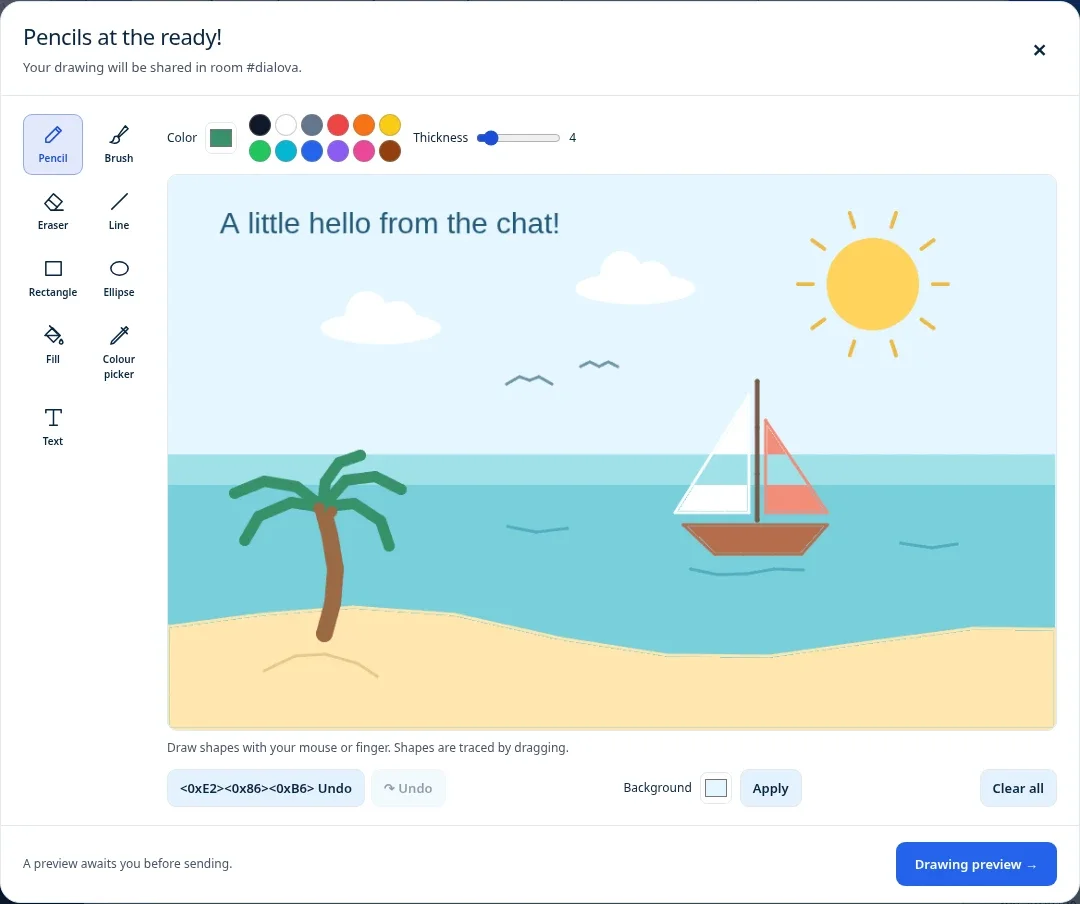
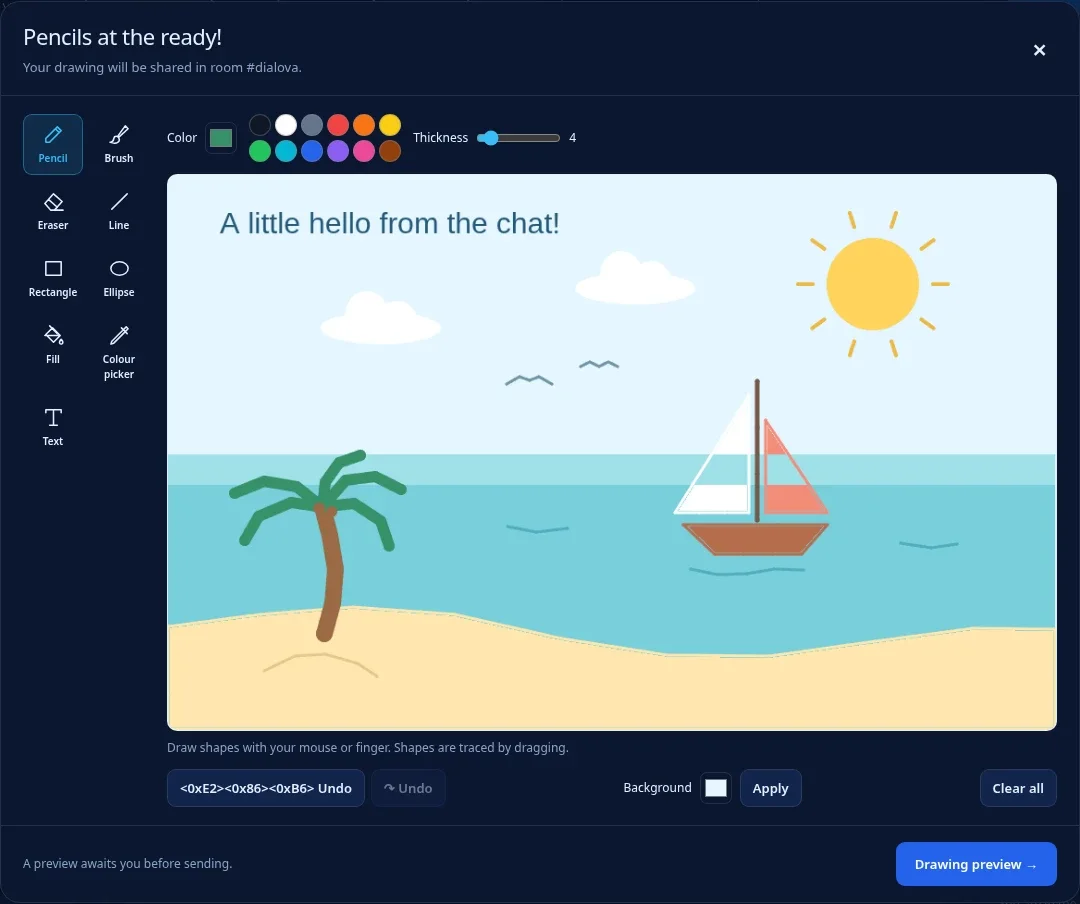
A small landscape created with the drawing tools in Dialova: screenshot of the editor in operation.
When you are happy with the drawing, choose Preview Drawing, then check the destination before clicking Send. It is shared as an image, in the room or private chat you choose. Nothing is transmitted while you are drawing. If you close the editor without sending, your drawing is not saved for your next visit.
What if the room became a comic strip?
The drawing sent in the conversation and Comic Book Mode are two different things. In the first case, you create an image. In the second, you continue to write your messages, but the room is displayed with inhabitants, expressions, and speech bubbles.
You’ll find this change in the room settings, under Comic Mode. It’s a personal display option for Dialova rooms: others can keep their text view. Private conversations and external networks retain their usual presentation.
Comic Mode prioritizes dialogue. To use message replies and reactions, or to see media displays again, switch back to text mode. You can explore this world in our article about comic chat, inspired by Microsoft Comic Chat.
IRC Remains the Meeting Point
These possibilities don’t mean that IRC has remained unchanged, nor that no client has ever proposed advanced features. Software, extensions, and usage have evolved. On Dialova, we primarily aim to make these possibilities easy to find within a single interface.
Written conversation remains central. IRC brings rooms and their exchanges to life; the Dialova web interface adds tools around this conversation. Images, recordings, calls, and the drawing studio have their own mechanisms: they don’t become universal functions of all IRC clients.
The features presented here concern Dialova rooms and private chats within our web interface. External networks and independent IRC clients don’t necessarily offer the same experience. If you’re interested in the technical workings, Modernized IRC: Dialova’s Choice explains this separation in more detail.
Try a Little Something Extra, Keep Your Way of Chatting
You can spend an entire evening writing without sending a single image. You can also answer a question, leave a laugh under a message, and finish with an improvised drawing. There’s no set path to follow or feature to use to ‘participate well.’
The next time a conversation gets lively, simply use the tool you need at that moment. A quote to clarify, a voice note to share, a two-way call, or a sketch to make yourself understood: these small gestures extend the pleasure of discussing together.
Join the Dialova chat · Find an answer in the FAQ · Resolve an issue in the help center
The discussion continues
Comments 0
Comments are public.
Loading comments...